November 4, 2026
When I migrated my blog to Hugo, I organized posts into dated folders. Each folder contains an index.md file and an images directory. That structure works well, but creating those directories and files manually for every post gets repetitive and wastes time. I wanted a single command that would take care of the setup so I could focus on writing. I ended up using two tools that were already available: Hugo archetypes and a very small Bash script. Here is how I configured them, what the various pieces mean, and how I use the workflow now.
What is a Hugo archetype?
An archetype is a template Hugo uses when it creates new content. It can populate front matter, which is metadata such as title, date, tags, and URL. It can also include starter text for the article. A directory-based archetype can also generate an entire page bundle, not just one Markdown file.
Hugo looks for archetypes in the archetypes directory at the root of the Hugo project. An archetype named for a content section, such as blog, takes precedence over the general default.md template. The files in the content directory, by contrast, are the actual pages and resources that Hugo processes to build the site.
First, I had to straighten out two archetypes directories. I’m not sure how this happened, but I needed to fix it.
~/Documents/GitHub/leemarkum-blog/archetypes/
~/Documents/GitHub/leemarkum-blog/content/archetypes/
The first is the standard location for archetype templates. The second lives inside the content directory, so Hugo would treat its files as content rather than the project’s regular archetype templates, unless there is custom configuration to say otherwise. I kept the project-root archetypes directory. I also kept archetypes/default.md for other types of content.
The root archetypes/blog.md already contained most of the logic I needed. It generated a title, removed the leading date from the folder name, and built a URL using the /archive/YYYY/MM/ convention I had preserved from WordPress. The missing piece was automatically creating the images directory.
Turning blog.md into a leaf-bundle archetype
A Hugo leaf bundle is a directory with an index.md file as its main page. Other files in the bundle can be page resources, including images. My blog already used that pattern, so I changed the archetype to match it.
cd ~/Documents/GitHub/leemarkum-blog
mkdir -p archetypes/blog/images
mv archetypes/blog.md archetypes/blog/index.md
touch archetypes/blog/images/.gitkeep
The commands have distinct jobs.
- cd changes to the root of the project.
- mkdir creates the blog/images directories;
- The -p creates missing parent directories and avoids an error if they already exist.
- mv moves the existing archetype into the new bundle-template location without altering its content.
- touch creates an empty placeholder file named .gitkeep.
That gave me this template structure:
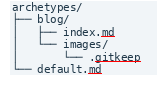
The .gitkeep file is not a Git command or special Git feature. It is simply a convention: Git does not track empty directories, and Hugo’s bundle archetypes need a file inside a subdirectory to copy that directory into a new bundle. Leaving .gitkeep in the template means every new blog post starts with an images folder.
My blog archetype, explained
Here is the archetype I moved from archetypes/blog.md to archetypes/blog/index.md:
{{- $name := .File.ContentBaseName -}}
{{- $slug := replaceRE "^[0-9]{4}-[0-9]{2}-[0-9]{2}-" "" $name -}}
---
title: '{{ replace $slug "-" " " | title }}'
date: {{ .Date }}
draft: true
description: ""
tags: []
categories: []
url: '/archive/{{ time.Now.Format "2006/01" }}/{{ $slug }}/'
---

Write your introduction here.
This archetype uses YAML front matter, marked by — lines. Hugo also supports TOML front matter with +++ lines. The original content/archetypes/blog.md used TOML-like delimiters but had incomplete assignments for description and url; the working root archetype was the better starting point.
How the template expressions work
- {{ … }}: Hugo template delimiters. Hugo evaluates the expressions when it creates the new post, replacing them with values in the generated index.md.
- {{- and -}}: The hyphens trim adjacent whitespace. They keep the template’s helper lines from adding unwanted blank lines to the output.
- $name := .File.ContentBaseName: Stores the bundle’s base name in a variable called $name. For example: 2026-11-03-my-next-post.
- replaceRE “^[0-9]{4}-[0-9]{2}-[0-9]{2}-” "" $name: Removes a leading YYYY-MM-DD- date pattern from the folder name. The ^ anchors the match at the beginning; [0-9]{4} matches four digits; [0-9]{2} matches two; the literal hyphens separate date components; and "" replaces the matching prefix with nothing.
- $slug: Holds the remainder of the folder name, such as my-next-post, for use in the title and URL.
- replace $slug “-” " " | title: Replaces hyphens with spaces and applies title case. The | symbol passes the result into the next template function. Review the result for product names such as SQL Server or proper nouns.
- .Date: Inserts the date and time when the content is created, in an RFC 3339-style timestamp including the timezone offset.
- draft: true: Keeps a new post out of an ordinary production build until it is ready to publish.
- description: “”, tags: [], categories: []: Adds empty metadata fields to fill out later. Square brackets are empty YAML lists.
- time.Now.Format “2006/01”: Produces the current year/month, such as 2026/11. The digits are Go’s date-format reference, not a literal year or month.
- url: /archive/…/$slug/: Creates a URL following the site’s existing archive convention. The generated index.md contains ordinary text, not template expressions.
- Write your introduction here.: Starter content below the front matter. I can replace that line when I start writing.
An important nuance to be aware of is that the URL’s year and month come from the date the archetype is triggered by the command I run, which will be explained later, and not from the date prefix in the directory name. That works when I create posts using today’s date. If I intentionally backdate or schedule a post, I need to review the date and URL before publishing.
Testing the new archetype
From the repository root, I can ask Hugo to create a test post:
hugo new content blog/$(date +%F)-test-archetype
hugo runs the static site generator; new content asks it to create a new content item; and blog/ identifies the content section under content/. The shell expression $(date +%F) runs the Linux date command before Hugo starts. The + indicates a date output format, and %F means YYYY-MM-DD. Bash substitutes the result into the rest of the command.
For example, if the date is November 3, 2026, Hugo receives this path: blog/2026-11-03-test-archetype
Using the bundle archetype, Hugo creates a structure like this:

index.md contains the rendered title, date, URL, draft flag, and introductory placeholder.
##A tiny Bash script makes it a one-command process
Once Hugo could generate the right structure, the next annoyance was remembering the full hugo new content command. I wanted to run a script, be prompted for the name, and let Hugo do the rest. The script is deliberately short.
I put it in scripts/newpost.sh inside the same Git repository with these commands:
mkdir -p scripts
xed scripts/newpost.sh
mkdir -p creates the scripts directory if needed. xed opens the script in the text editor I use on Linux Mint. The .sh extension is a naming convention for shell scripts; the important part is the script’s contents and executable permission.
Contents of scripts/newpost.sh
This is text that goes into the newpost.sh file.
#!/bin/bash

# Prompt for the new blog post name
read -r -p "Enter the new blog post name: " postname

# Create the new Hugo blog post
hugo new content "blog/$(date +%F)-$postname"
The first line, #!/bin/bash, is called a shebang. It tells the Linux operating system to use Bash to execute the file. Lines beginning with # (other than the shebang) are comments. The read command asks for input; -p displays the prompt, and -r prevents backslash escapes from being interpreted. The answer is stored in the variable postname.
The last line invokes Hugo with today’s date and the supplied name. $postname inserts the value of the Bash variable. The surrounding double quotes keep the whole path together as one argument.
The script expects me to type a URL-friendly slug using lowercase letters and hyphens, not a sentence with spaces. It also assumes I run it from the Hugo project root. That is fine for my workflow and keeps the script easy to understand.
Give the script permission to run
From the command line, run the following:
chmod +x scripts/newpost.sh
ls -l scripts/newpost.sh
chmod changes permissions, and +x adds executable permission. ls -l lists the file in long format so I can see permission bits; an x in the mode indicates executable permission. Git tracks the executable bit when I commit the script, so it can be reused after cloning the repository.
Creating a real post
From the Hugo project root, the command I need to remember is now:
./scripts/newpost.sh
The script prompts:
“Enter the new blog post name:”
I might enter:
“building-a-sql-server-2025-lab-on-linux-part4”
The script then passes a dated path to Hugo, which creates index.md and the images directory from my archetype. There is no need to create the folder or copy front matter manually.
Previewing and publishing drafts
Because the archetype sets draft: true, I preview new work locally with:
hugo server -D
The “server” part of the command starts Hugo’s local development server. The -D flag is shorthand for –buildDrafts, so draft pages appear in the local preview. When the article is ready, I update the metadata and change draft: true to draft: false before committing and pushing the site.
Keeping each post as a leaf bundle also makes images easier to reference. Inside index.md I can use a relative Markdown path such as:
"
Various sites exist that show examples of the various markdown syntax options to do things like reference an image, make something various levels of headers, a paragraph, and more.
The final workflow
I now have an archetype that defines what a new post should look like, and a three-line Bash script that launches the process. I open a terminal in my Hugo repository, run ./scripts/newpost.sh, enter a slug, and start writing. The script lives in the repository, so GitHub Desktop can commit it alongside the Hugo site. That gives me an easy,repeatable setup on my Linux Mint machine.
For more detail, Hugo’s official documentation is worth keeping handy: