October 25, 2026
Building a foundation for a Windows SQL Server lab on Linux
First of all, this will be a blog post series. There is simply too much to cover in one blog post and expect people to read it. This blog post is going to be about how I laid the foundation for what I was planning to build.
At the end of the process, I had a fully functional, four machine lab that looks like the below. I used Windows Server 2025 OS Evaluation Edition. I created a Windows Cluster and set up an Availability Group.
| Machine | Purpose |
|---|---|
| DC01 | Active Directory + DNS |
| Utility | Management/Jumpbox |
| SQL01 | SQL Server 2025 |
| SQL02 | SQL Server 2025 |
Building the environment in the table took several multi-hour sessions. The last time I built a lab with a Windows Cluster and an AG, I had the help of a family member who is a SysAdmin. He took care of the infrastructure after I explained what I needed. That lab fell into disrepair for various reasons.
This time, it was just me and ChatGPT using my own hardware that I’m on every day. Early on I asked ChatGPT to explain the commands it was giving me so I could have some understanding of what the command was supposed to be doing. This was very useful when the provided commands had switches and options that were just single letters and I had no idea what they were for. Of course, there was some good ‘ole fashioned googling as well from time to time.
Why Linux and Virt Manager?
I didn’t build the lab on Windows because I’ve been daily driving Linux desktop distributions for a couple of years now. I wanted to see if I could use Linux to host my lab and not have to use VMware workstation on Windows or Hyper-V. This was an experiment in answer to my curiosity, “Can I do this on Linux?”
So why LibVirt and not VirtualBox or Boxes by Gnome? I tried VirtualBox at first. However, the OS kernel on my Linux Mint machine was newer than what VirtualBox supports. After installing VirtualBox, I started getting all kinds of errors that I eventually tracked down to the newer kernel I was using. As a result, I had to remove Virtualbox and its components, which I did with the below from the command line:
sudo apt purge virtualbox virtualbox-dkms virtualbox-qt virtualbox-guest-additions-iso
Then I thought, “Why not use the same Virt Manager app I use for testing Linux distros in VMs to build the Windows lab for SQL Server?”
The permanent stack for this became KVM + QEMU + libvirt + virt-manager +virsh.
The Virt Manager application is a common platform on Linux for creating and managing virtual machines. I already had it on my machine, but if you want to try this, and don’t have this on your Linux machine?
If that’s the case, open your distribution’s package manager application and search for virt-manager. Keep in mind that there could be at least two options.
- An option offered by Flathub, which is a mostly universal application store for Linux.
- An option that is offered from or by your specific distribution in its package manager.
This is what the search in Mint’s Software Manager looks like. Notice that it says “System Package.” That means it is Mint’s own package for Virt Manager and not the Flatpak version.
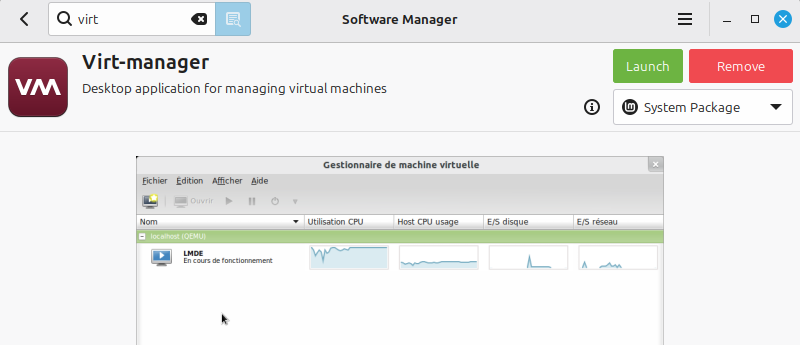
I’d generally encourage you to use the application package associated with your Linux distribution because it may have code tweaks that make it integrate better with your distribution. That’s not to say that FlatPaks are bad or shouldn’t be used.
Installing that application on Debian based systems like mine will give you the entire stack you will need. My experience has been that Linux is pretty good at identifying dependencies and downloading everything you need for an app to run.
Storage Setup:
My existing volumes didn’t have as much space as I really wanted for a lab, so I had to say goodbye to an Alma Linux install I had on another hard drive connected to this same machine. I wasn’t really using it anyway. I had been using the hard drive as a place to do bare metal installs of various Linux distributions because not all distros work well in a VM. I used ChatGPT to help me format that drive and mount it as /vmdata so my Linux OS could use the space, which is roughly 1 TB.
I then created the /VMs directory on /vmdata. This would host my VM storage files. I already had a directory elsewhere that I was using to host my Linux ISOs. I simply made another directory to store the Windows Server 2025 ISO rather than use this new location for that.
I created a storage pool in Virt-Manager and pointed it to /vmdata/VMs. This part was done using the virsh command, but could also be done using Virt-Manager’s GUI.
GUI Instructions:
Open Virt-Manager. Click QEMU/KVM, then Edit. Click Connection Details. Click the Storage tab. Click the “+” in the lower right, and give the storage pool a name and the proper target path for the backing storage.
Command Line Instructions:
See what storage libvirt already knows about
virsh pool-list --all
Here is how I created the storage pool to use for the new lab:
virsh pool-define-as VMStorage dir --target /vmdata/VMs
What each part means:
- virsh — command-line interface to libvirt.
- pool-define-as — creates a persistent storage-pool definition using command-line arguments rather than requiring us to write XML manually.
- VMStorage — the name we’re assigning to the new libvirt storage pool.
- dir — tells libvirt this is a directory-based storage pool. Libvirt will use an ordinary filesystem directory to hold VM disk images.
- The - -target /vmdata/VMs specifies the directory backing the pool. In our case, that directory resides on your newly repurposed SATA SSD.
Defining the pool doesn’t start it yet. If that succeeds, start the storage pool:
virsh pool-start VMStorage
Then enable automatic startup:
virsh pool-autostart VMStorage
Previous to allocating separate storage for the lab, I had already installed Windows Server 2025 on a VM on existing storage. This did mean that I had to shut down the VM and move it to the new, dedicated storage later. If I’d planned out the storage first, then built that first machine, I could have prevented the steps related to moving the storage for the Windows SQL Server template I was making.
Network layout
I created SQLLab as a second NAT network in virt-manager without touching “default”, which is where all my existing Linux VMs are.
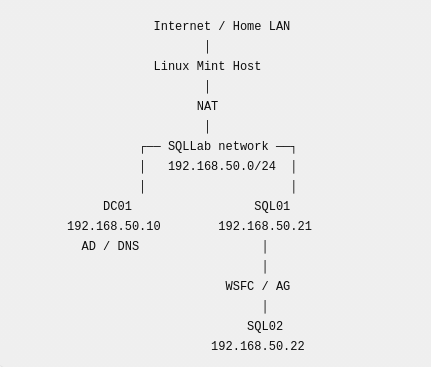
Creating the new network
- Click QEMU/KVM at the top of the list.
- Then look at the top menu and select Edit.
- Select Connection Details.
- Click the “+” sign in the lower right to open the menu to create a new virtual network.
- Change the fields on the “Create virtual network” dialog based on the below.
| Setting | Value |
|---|---|
| Name | SQLLab |
| Mode | NAT |
| Forward to | Any physical device |
| Enable IPv4 | ✓ |
| Network | 192.168.50.0/24 |
| Enable DHCPv4 | ✓ |
| Start | 192.168.50.100 |
| End | 192.168.50.200 |
| IPv6 | Leave disabled |
| DNS domain name | Use network name(This is just libvirt/dnsmasq’s local DNS domain setting.) |
I then confirmed this configuration with the below commands to verify that the SQLLab network was active and set to autostart.
virsh net-list --all
virsh net-dumpxml SQLLab
SysPrep
Prior to using SysPrep against that first SQL Server vm that was meant to be a template, I made a backup of the definition of that machine.
- Make the backup directory
sudo mkdir -p /var/backups/vms/Winserver2025-PreSysprep-2026-10-01
- Copy the xml definition file to the new directory.
sudo tee /var/backups/vms/Winserver2025-PreSysprep-2026-10-01/Winserver2025.xml > /dev/null
- Copy the volume files to the new directory.
sudo cp --sparse=always /data/VMs/WinServer-*.qcow2 \
  /var/backups/vms/Winserver2025-PreSysprep-2026-10-01/
I then ran the following SysPrep command.
C:\Windows\System32\Sysprep\Sysprep.exe
Once all of this was set up, I was ready to clone the Windows Server template for SQL Server. I made a directory to hold the SQL01 VM.
mkdir /vmdata/VMs/SQL01
Then I cloned the Winserver2025 template that was powered off and generalized with SysPrep.
virt-clone \
    --original Winserver2025 \
    --name SQL01 \
    --file /vmdata/VMs/SQL01/WinServer-OS.qcow2 \
    --file /vmdata/VMs/SQL01/WinServer-SQLData.qcow2 \
    --file /vmdata/VMs/SQL01/WinServer-SQLLogs.qcow2 \
    --file /vmdata/VMs/SQL01/WinServer-SQLRecovery.qcow2 \
    --file /vmdata/VMs/SQL01/WinServer-Tempdb.qcow2
Once I completed that and started the VM “SQL01” I was prompted witht eh OOBE (Out of the Box Experience) prompts from Windows. I had designed this SQL Server machine with the following volumes:
| Volume | SizeGB |
|---|---|
| C: Windows / SQL binaries | 100 |
| E: SQLData | 100 |
| L: SQLLogs | 100 |
| R: SQLRecoveryBackups | 50 |
| T: Tempdb | 50 |
Despite my best efforts to work with ChatGPT to move the storage files for the Windows Server template to the dedicated storage area, fix some file name issues I had, and then clone that for the SQL Server machines, the above volume design got messed up. After cloning the machines I perhaps didn’t review the volume layout first. I installed SQL Server and then saw that it wasn’t what I had planned on.
I ended up with SQL Servers that had the following volumes instead:
| Volume | SizeGB |
|---|---|
| C: Windows | 100 |
| D: SQLData(SQL Server binaries) | 100 |
| E: SQLRecoveryBackups | 50 |
| F: SQLLogs | 100 |
| G: Tempdb | 50 |
I will confess that at several points along the way of building all of this, I became quite tired, frustrated, and a bit irritable. So, it’s entirely possible that I just messed up this part of the process.
I haven’t investigated the original template VM to see if sysprep changed anything about the volume letters. So, I really don’t know yet how this change happened. Is it a big deal? Not really, but it’s part of the process that didn’t work as intended, and I’d like to figure that out.
SPICE Guest Tools
One thing I want to mention is there is software that has a similar functionality as VMWare tools. It is called SPICE, and more specifically, what I needed was SPICE Guest Tools. The key things I was trying to get out of installing the SPICE Guest Tools was the ability to copy/paste from my Mint machine into the Windows VMs.
That software is on this page:
However, be careful because there are a LOT of links on that page. The one I needed was under the section called “Windows binaries” and is a link in the first sentence under that section.

Conclusion
That’s it. That’s how I built the initial foundation for the lab.
Next time I’ll cover building the domain controller and the rest of the machines. Then I’ll tackle building the Windows cluster, and the AG after that.